
Books
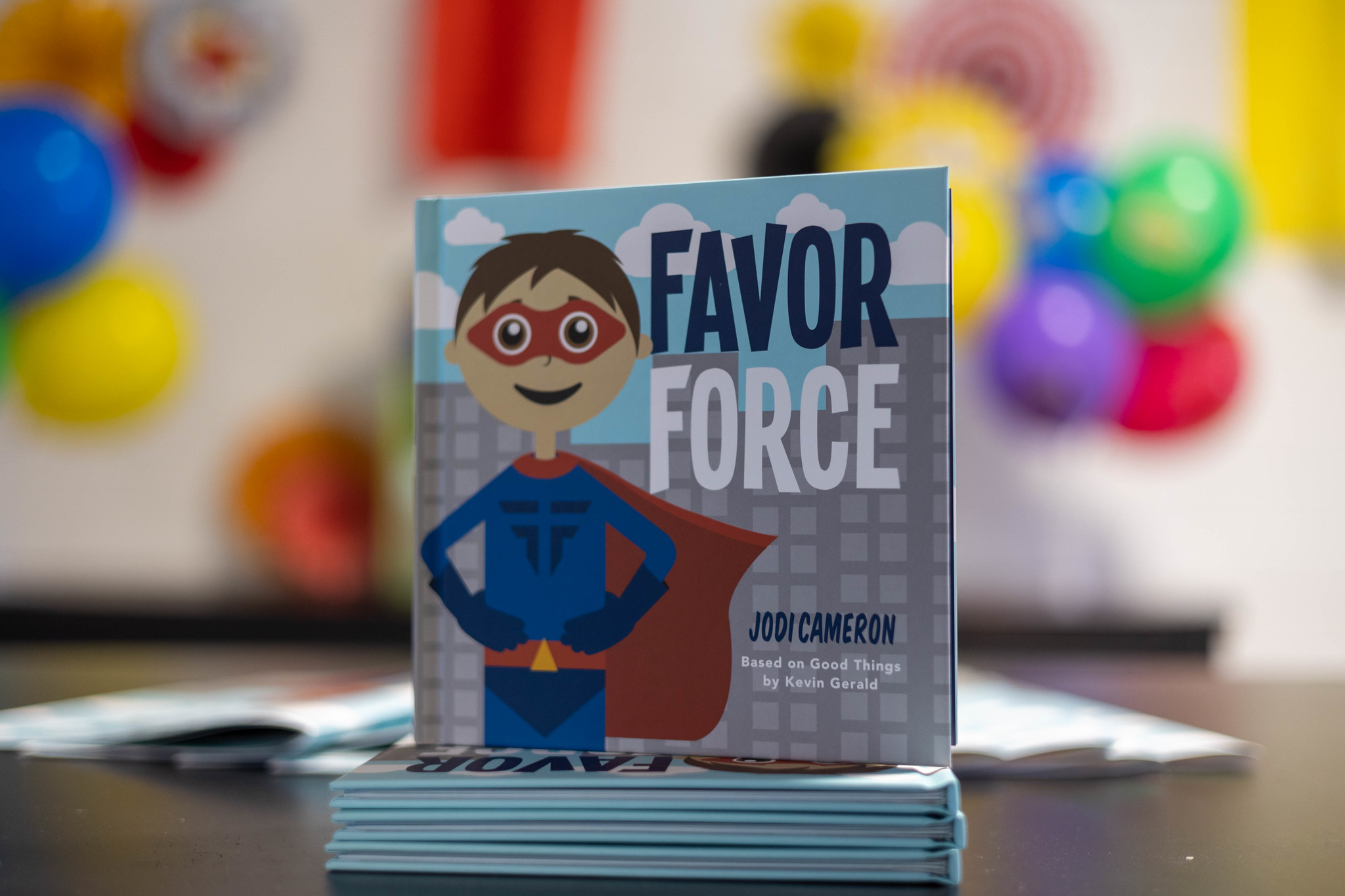
Favor Force
Geared toward kids ages 3-10 years old, Favor Force is a kid's book based on Good Things by Kevin Gerald. It's an interactive read-aloud book created to develop a strong foundation
from a young age to believe God is good even when life is hard. Told in a fun, colorful way, this book will help your little one build their faith in God and look for the good in any situation.
Favor Force Resources
When it comes to trusting God in the good stuff and the tough stuff, it starts by deciding to be a Good Finder! Reinforce what your kids (and family) are learning through Favor Force with this free resource pack:
-
Activity Pages, Printable Memory Verse Cards, Parent's Guide & a 5-Day Devotional geared for elementary-age kids ready to learn more about trusting God no matter what called Be A Good Finder For Students:
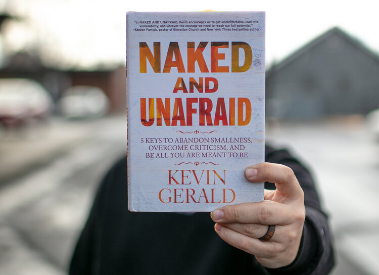
Naked and Unafraid
Fear of criticism has turned into a massive epidemic harder than ever to overcome. It prevents people from speaking up; it’s why most people struggle to make decisions; it’s why we’re uncomfortable with vulnerability and openness; and it’s why so many are unable to meet their full potential. But it doesn’t have to be that way. Purchase Kevin Gerald’s latest book and learn how to abandon smallness and live the life you were born to live.
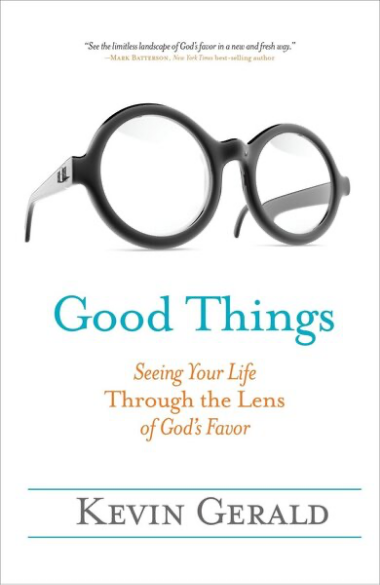
Good Things
In Good Things, you will be equipped to: Discover that the goodness of God exceeds the pain of life’s hardships; know how to keep your mind on God’s favor, not your failure; recognize that grace and favor are so intertwined you can’t separate them; apply seven favor dynamics that will help you overcome relationship barriers; and see what you are certain to overlook until your eyes are trained to see it.
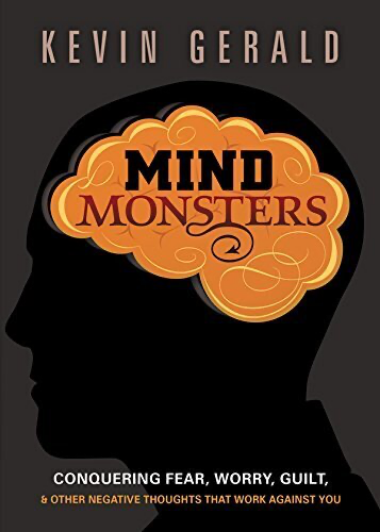
Mind Monsters
Every day we are bombarded with negative messages—from society, the media, and even from self-talk in our own minds.
Today you have a choice: Will you allow your mind monsters to take up residence, affecting who you are and God’s plan for your life, or will you conquer them and experience a life that is positive, abundant, joyful, and overflowing with peace?
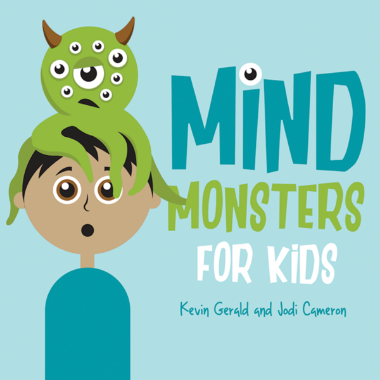
Mind Monsters For Kids
Written by: Kevin Gerald and Jodi Cameron
Mind Monsters for Kids is an interactive read-aloud created to develop a strong foundation of F.A.I.T.H. from a young age. Told in a fun, colorful way, this book will help your little one conquer insecurities, doubts, worry, and fears that beat those obnoxious monsters once and for all.

Proving Ground 2.0
There’s often a gap between where you are and where you could be, whether you know it or not. Whatever your gap is, there’s a test to pass that will build a bridge to where you want to go. This book will equip you to: Stop going in circles and move forward into your full potential. Identify what barriers are holding you back so that you can bust through them to the next level in your personal, professional, and spiritual life. Challenge limiting mindsets as you embrace healthy habits to overcome the tests of life. If you want to move your life forward, God will require you to prove your potential at one level so that you can handle what’s next. Let’s pass the test, together.

Fight of Your Life
What are you fighting for? You can choose to fight IN your life— with people or emotions, or yourself. Or, you can choose to fight FOR your life with prayer, words, and faith.
In this mini book, you will: Discover how to reserve your strength for good fights only. See beyond your current fight to the future impact after you win. Abandon small thinking about yourself and adopt who God says you are. Put your shoulders back, get your eyes, and get battle ready. You can win if you don’t quit!